


Apple Macbook Crackling Audio Fix macOS: Ultimate Step-by-Step Guide to Stop Popping Sounds. Many Mac users have recently experienced macOS Crackling Audio issues where built-in speakers, headphones, Bluetooth audio devices, and external outputs produce crackling, popping, static, or distorted sounds. In this guide, we will explore why this problem occurs, whether it is a hardware or software issue, and all the permanent solutions available to fix it effectively.
What Users Are Experiencing
Common symptoms reported by users include:
- Crackling or popping sounds during audio playback on any application
- The problem occurs even at low volumes
- More noticeable when running resource-heavy apps like Xcode or iOS Simulator
- Restarting the Mac temporarily fixes the problem, but it often returns
- The issue sometimes disappears when using external headphones or speakers
Many users initially worry that their speakers are damaged, but in most cases, this is not a hardware problem.
Is It a Hardware Problem or a Software Bug?
Evidence strongly indicates that this issue is software-related. External speakers and headphones often work fine, and the problem occurs even on brand-new M4 Macs. Additionally, the issue often begins after macOS updates, suggesting a system-level bug. Therefore, macOS Crackling Audio problems are caused by software and CPU scheduling, not hardware damage.
Root Cause of the Problem
The macOS Core Audio engine (coreaudiod) manages all system sound. Reddit users’ analysis has shown:
coreaudiodconsumes unusually high CPU (e.g., ~7.5% on an M4 while playing Apple Music)- When other apps request CPU resources,
coreaudiodmay not get enough - This causes audio buffer underflow, resulting in crackling and popping sounds
- Once underflow occurs, the audio engine struggles to recover
Thus, this confirms that macOS Crackling Audio is a software issue, not a hardware fault.
Available Solutions
Several solutions have been identified to reduce or eliminate crackling and popping sounds on macOS. Below is a step-by-step guide.
1. Restart Core Audio (Temporary Fix)
Restarting the Core Audio service can temporarily fix the issue:
sudo killall coreaudiodEnter your password when prompted. Audio may pause briefly before returning. Note that this is only a temporary solution and may need to be repeated after the next audio glitch or reboot.
2. Adjust Sound Output Settings
- Open System Settings > Sound > Output
- Select the correct output device (Internal Speakers, Headphones, etc.)
- Open Audio MIDI Setup (Applications > Utilities)
- Ensure the sample rate is set to 44,100 Hz or 48,000 Hz
Using an incorrect sample rate can cause timing issues, leading to crackling sounds.
3. Update macOS and Applications
- Go to Apple menu > System Settings > General > Software Update
- Install all available updates to patch known audio glitches
4. Boot in Safe Mode (Diagnostic Step)
- Shut down your Mac
- Power it on while holding the Shift key until the login screen appears
- Test the audio
If the problem disappears in Safe Mode, it is likely caused by a third-party application conflict.
ALSO READ: AirDrop Not Showing in Finder Sidebar? Fix It on macOS Sequoia Now
5. Reset Audio Preference Files
- Open Finder → Go > Go to Folder
- Enter:
~/Library/Preferences/Audio - Delete the following files:
com.apple.audio.DeviceSettings.plistcom.apple.audio.SystemSettings.plist
- Restart your Mac to regenerate default settings
6. Test with External Audio Devices
- If external audio works fine → the issue is likely with internal speakers and software
- If crackling persists → there may be a system-level or rare hardware issue
7. Clean Physical Speakers
Dust or blockage in speaker grills can distort audio. Use a soft brush or compressed air to clean them. In most cases, software fixes resolve the issue entirely.
Recommended Best Fix: Increase Core Audio Priority
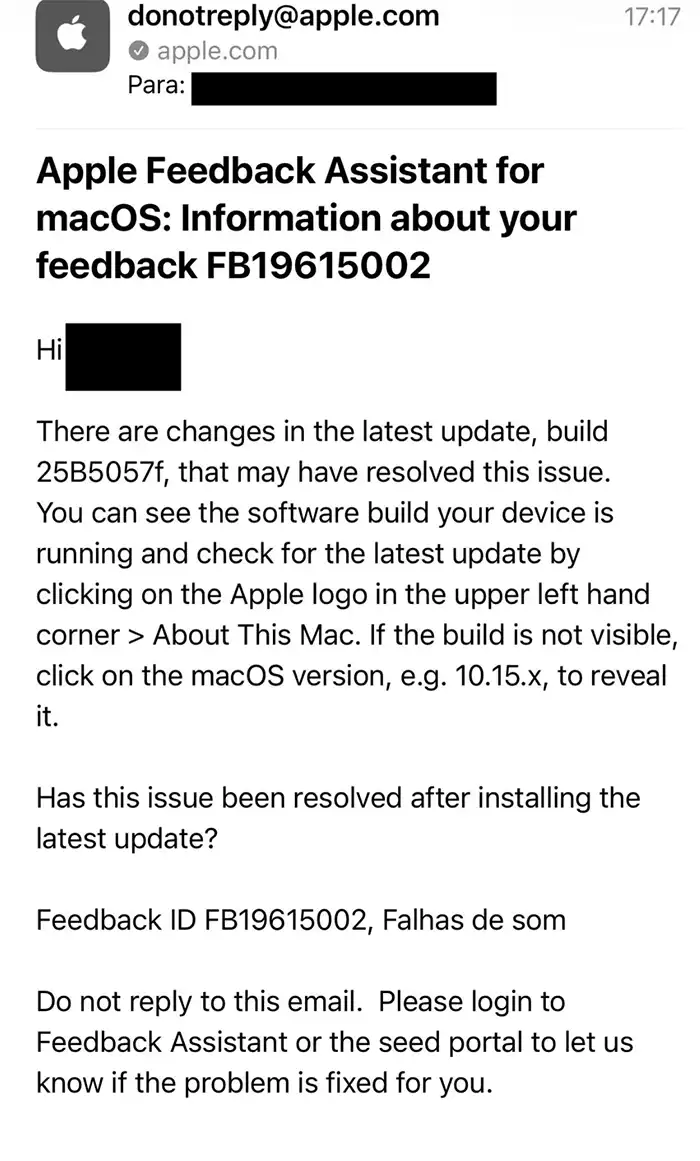
we discovered a permanent workaround that avoids repeatedly killing coreaudiod.
The Problem
- coreaudiod consumes high CPU (~7.5% on M4 Macs)
- When other apps request CPU, coreaudiod does not get enough resources
- This causes audio buffer underflow → crackling and popping
The Solution
Increase Core Audio’s CPU priority:
sudo renice -20 $(pgrep coreaudiod)- Enter your password when prompted
- No output will appear (normal)
- Audio immediately becomes more stable
⚠️ This works until the next restart. You must reapply the command after reboot.
⚠️ This is not an official fix. Apple should patch this issue.
Why This Is Better Than Killing Core Audio
| Method | Stability | Effort | Effectiveness |
|---|---|---|---|
sudo killall coreaudiod |
Temporary | Repeat | Short-lived ❌ |
sudo renice -20 coreaudiod |
Stable until reboot | One-time per boot | Most effective ✅ |
When to Contact Apple Support
- If crackling persists across all apps and outputs even after these fixes → hardware issue may be present
- Contact Apple Support or visit an Apple Authorized Service Provider
Summary
- Most macOS Crackling Audio issues are software-related
- Quick fix: restart Core Audio
- Long-term workaround:
sudo renice -20 $(pgrep coreaudiod) - Keep macOS and apps updated
- Hardware inspection needed only if software fixes fail
By following these steps, you can enjoy crystal-clear audio on your Mac again without crackling or popping sounds. Some Apple discussion also will help if not fixed by here.