


In this tutorial, I’ll guide you on Add Another Account in WhatsApp on iPhone, wa iPhone. I’ll walk you through the process of adding a second WhatsApp account on your iPhone in this tutorial.
Step 1
Launch WhatsApp on your device first. Press the settings icon once you’re in the app.
Add Another Account in WhatsApp iPhone, iPad
Update the WA iPhone
Check whether there is a new updated app available or not in Apple App Store.
Method – 1
Launch WhatsApp on your device first. Press the settings icon once you’re in the app. Once you open WhatsApp see Setting in the bottom end tab
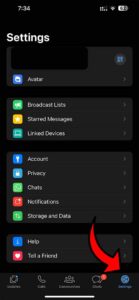
Simply tap on the setting, There is an active Account, also check the below list has “Account” and Tap on that to view accounts.
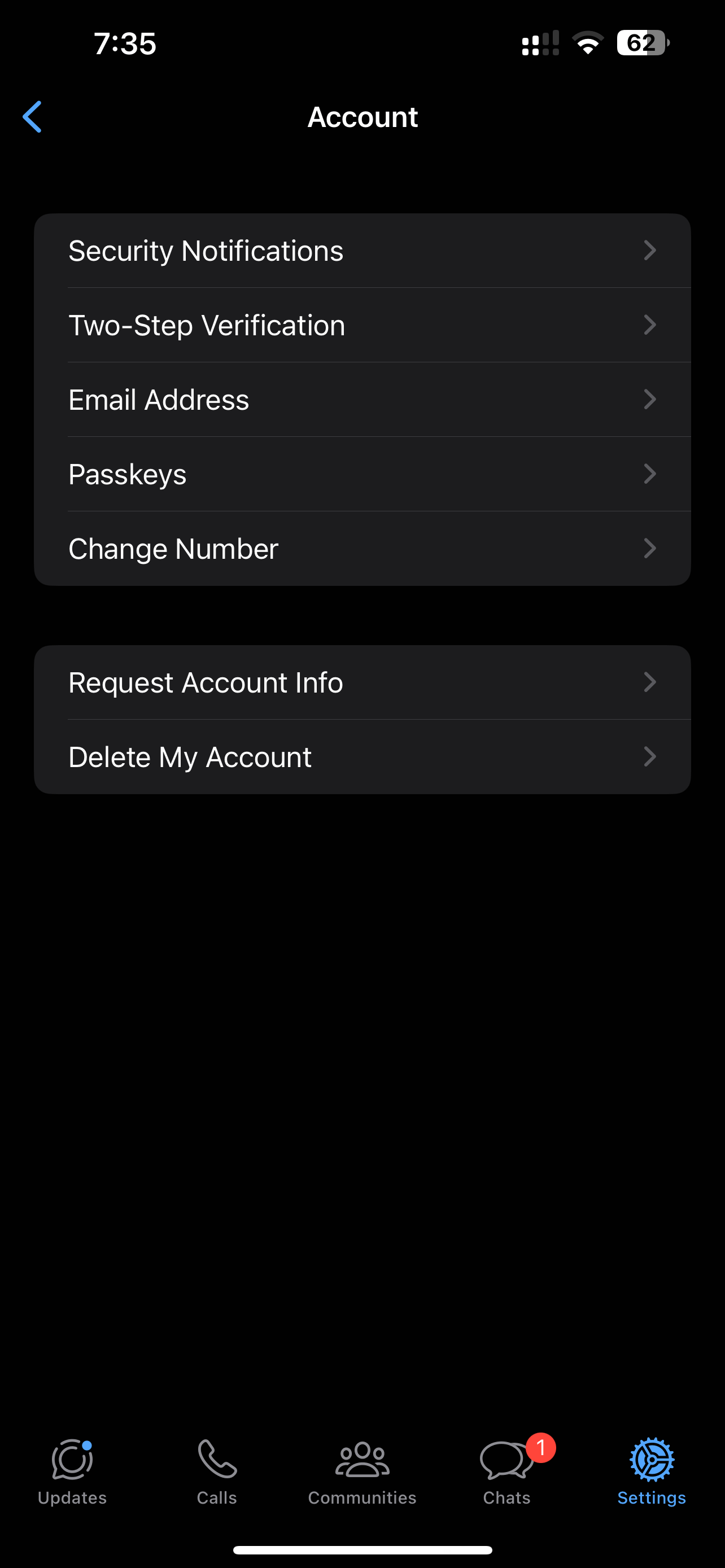
If your app has the option to add a second WhatsApp account here should be shown.
Method – 2
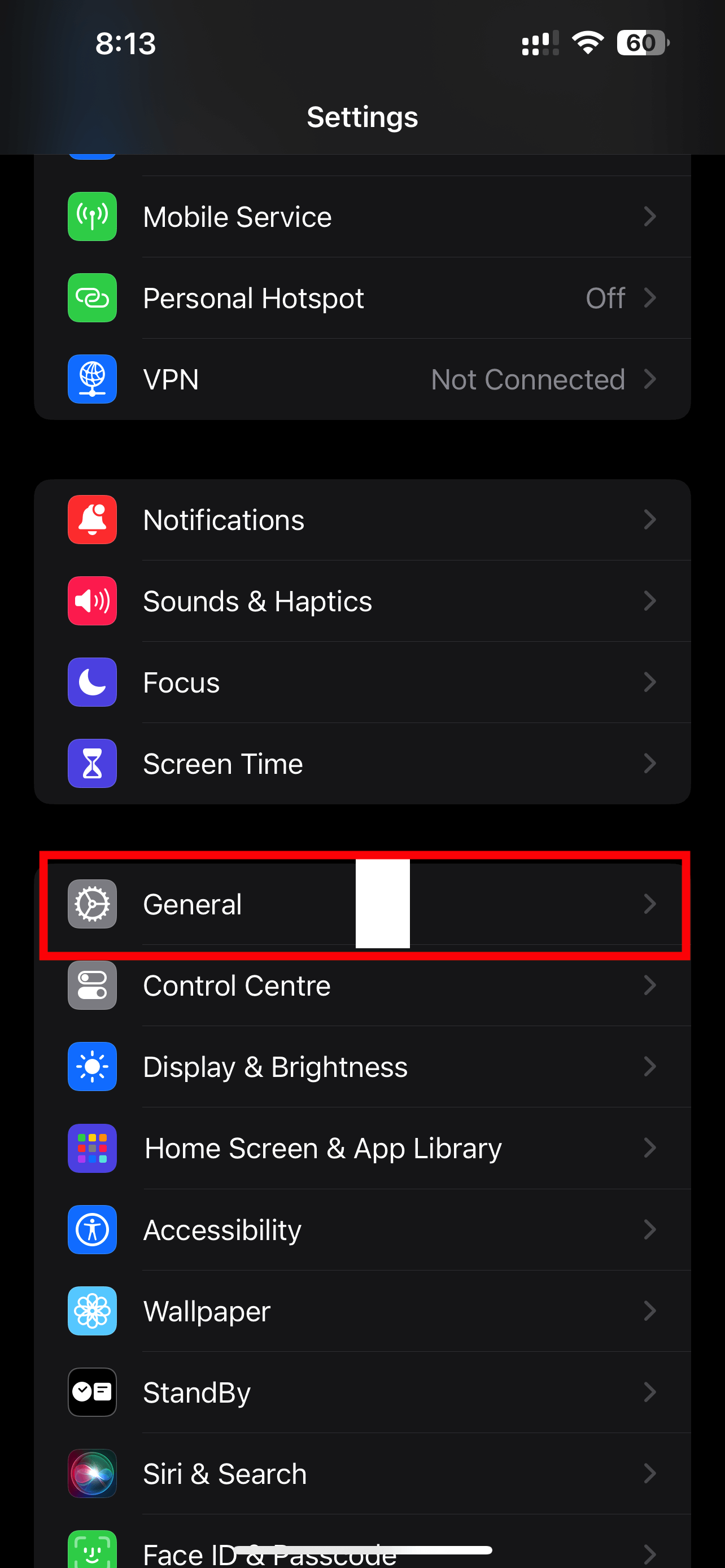
Goto Setting, Tap on General
Tap on iPhone Storage
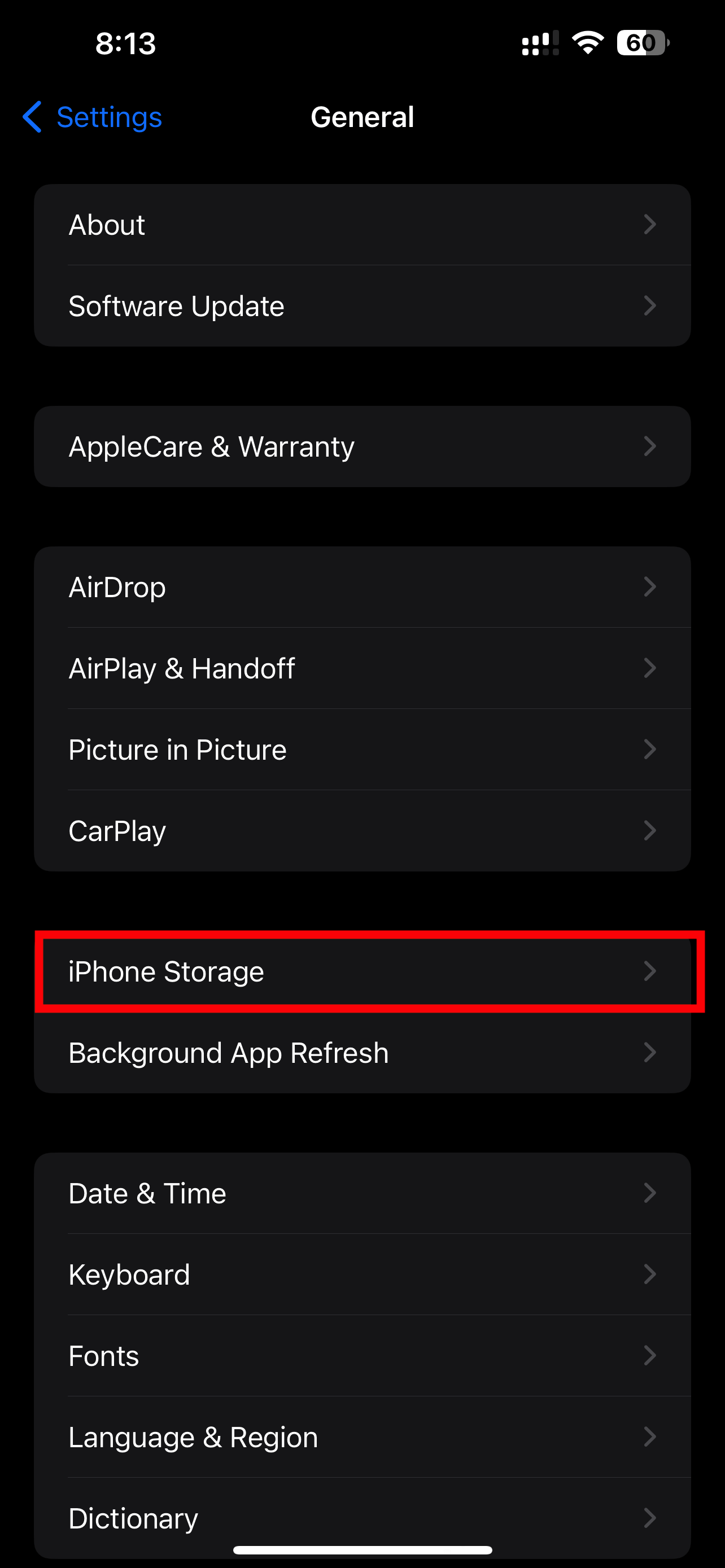
Wait for fully loaded
Tap on WhatsApp
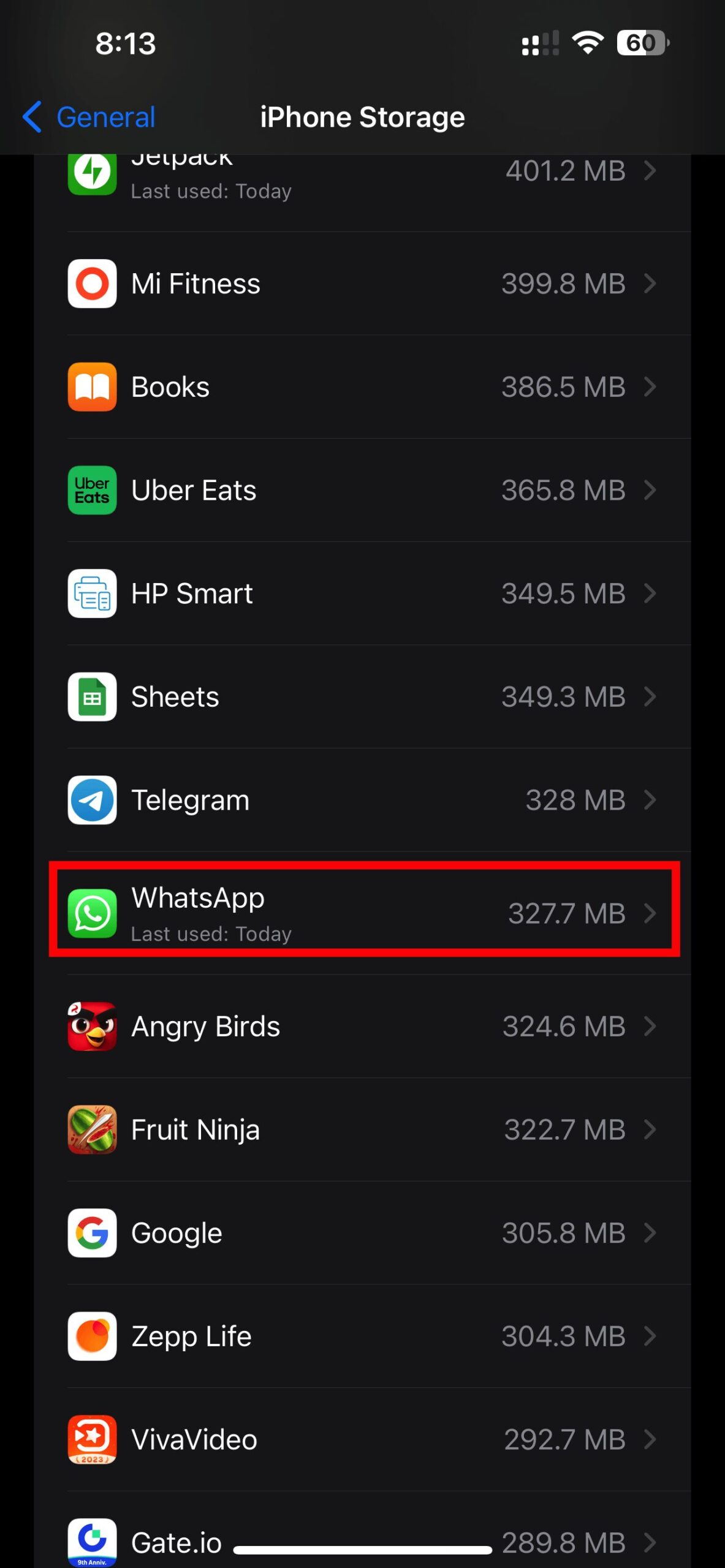
Tap Offload App
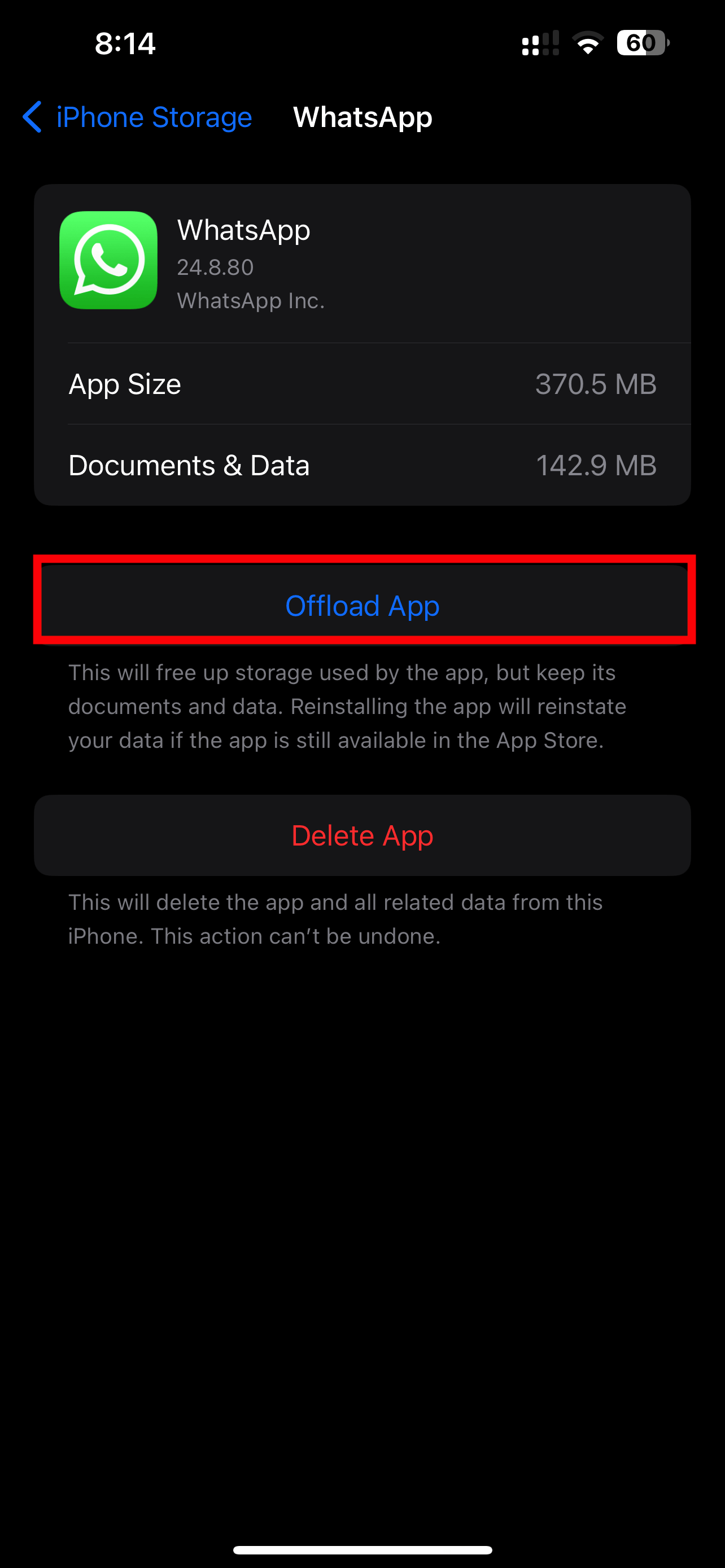
A popup window will open the same as the Tap Offload App
Now Reinstall App

Now open and follow the Method – 1
WhatsApp Help
Still nothing happened? Don’t worry Complain this issue to WhatsApp by Help in WhatsApp.
Read Also: How to Properly Turn Off Your iPhone 13, 13 Pro, 13 Pro Max: A Step-by-Step Guide